Troubleshooting
Facing source or app issues? Here's how to troubleshoot.
Be sure to check the Frequently Asked Questions for how to address common issues too.
WebView
Accessing websites via WebView
Once you've entered a source/series, go to , or simply press the icon directly inside a series.
- Open Browse from the bottom navbar.
- Tap the desired source.
- Open in the top toolbar and tap Open in WebView.
- Complete a CAPTCHA if one is shown.
- Close by tapping
Xat the top-left.
Clearing cookies and WebView data
This resets your WebView to a clean state, including any login states.
- Navigate to .
- Tap Clear cookies.
- Tap Clear WebView data.
WebView update
To update WebView, you need to find what WebView implementation is used on your device.
Typical default implementation depends on the Android version as follows:
TIP
You can check or change which implementation is in use from Developer Options.
Caution with Non-Standard WebView
Using non-standard WebView (like Firefox) might cause Reikai to malfunction or crash.
It's best to use the standard Android System WebView or Google Chrome.
Cloudflare
Some sources sit behind Cloudflare, an anti-bot check, and stronger settings of it can block apps like Reikai. It usually shows up as a Failed to bypass Cloudflare error, or as WebView reloading the page over and over.
Work through these in order, and stop at the first one that works:
- Open the source in WebView and complete the check there, then go back and retry.
- If the page stops on a Verify you are human box, turn on Solve interactive Cloudflare challenges in , which ticks the box for you. It is off by default. To let library updates get past the check too, also turn on Solve with the app closed.
- Change your user agent, restart the app and try WebView again.
- Route the source through a Cloudflare bypass proxy you run yourself. This is for protection the in-app WebView cannot clear at all, and it needs a computer or server that stays on.
If none of these work, wait for the source to lower its protection, or switch to a different source.
Changing your user agent
A user agent string shares requester information with websites, potentially affecting Cloudflare's bot detection. While some sources have specific user agent strings, most rely on the app's default.
Changing your user agent
- Navigate to .
- Replace the Default user agent string with a different user agent string.
- You can use any user agent strings available in the reference site or by searching online.
- You may need to try different user agents from different devices, browsers, and/or operating systems.
- After changing the user agent string, remember to restart the app & check WebView to see if it passes verification.
General
A download keeps failing
Whether a chapter can be fetched is usually decided by the source, extension or plugin, not by Reikai. Common cases:
- The chapter is blank in the reader too, or shows a Cloudflare error: the source's site is unreachable or blocking you. Wait for it to come back, or follow the Cloudflare steps if that is the block.
- It won't download until you open the chapter first: some sources only list a chapter's pages once you have opened it in the reader. Open the chapter once, then download it.
- It opens in the reader but saves no pages: the extension finds no pages to save, so there is nothing to download. Report it to whoever publishes the extension.
To tell whether the problem is Reikai or the source:
- Manga: try the same source and chapter in Mihon. If it fails there too, the cause is the source or your network (ISP, DNS, a VPN or a firewall). If it works in Mihon but not in Reikai, open an issue with the exact source, chapter and steps.
- Light novels: open the chapter in the reader, then on the site itself with Open in WebView. If the site will not show it either, the cause is the site or your network. If the chapter reads fine but will not download, open an issue with the exact source, chapter and steps.
Obtaining crash/error logs
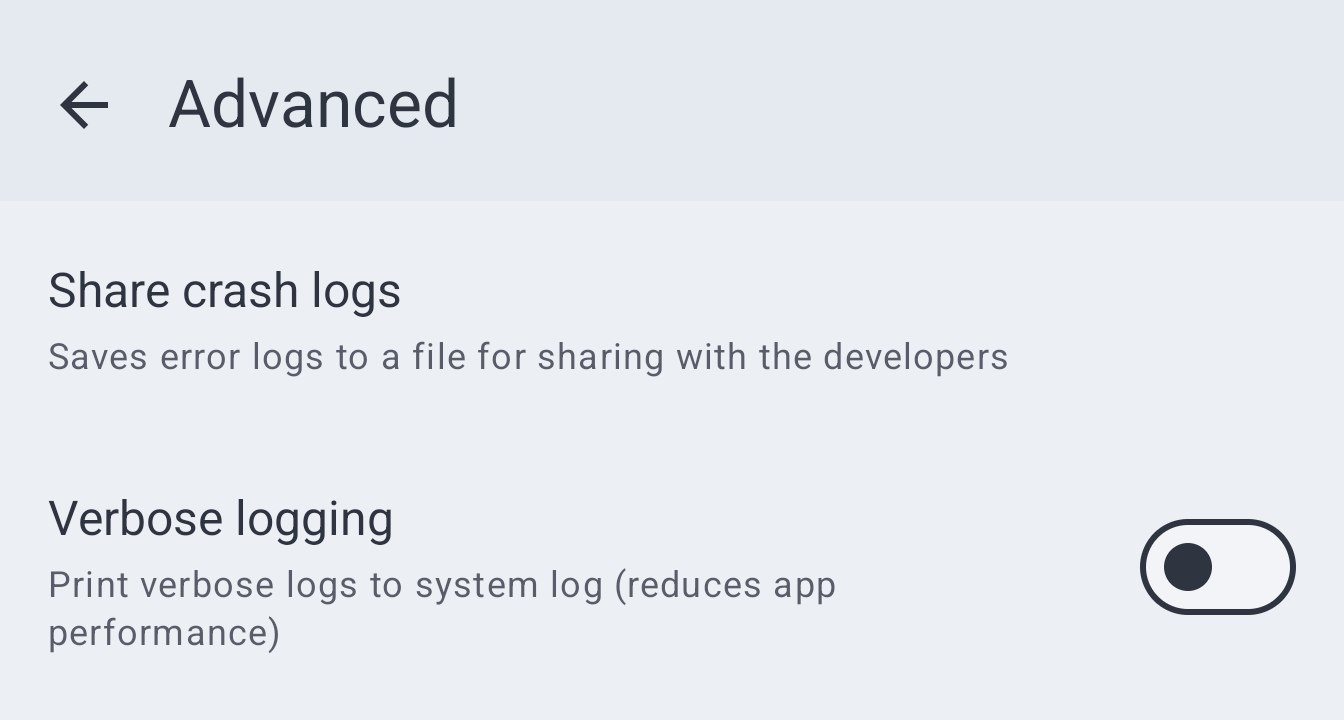
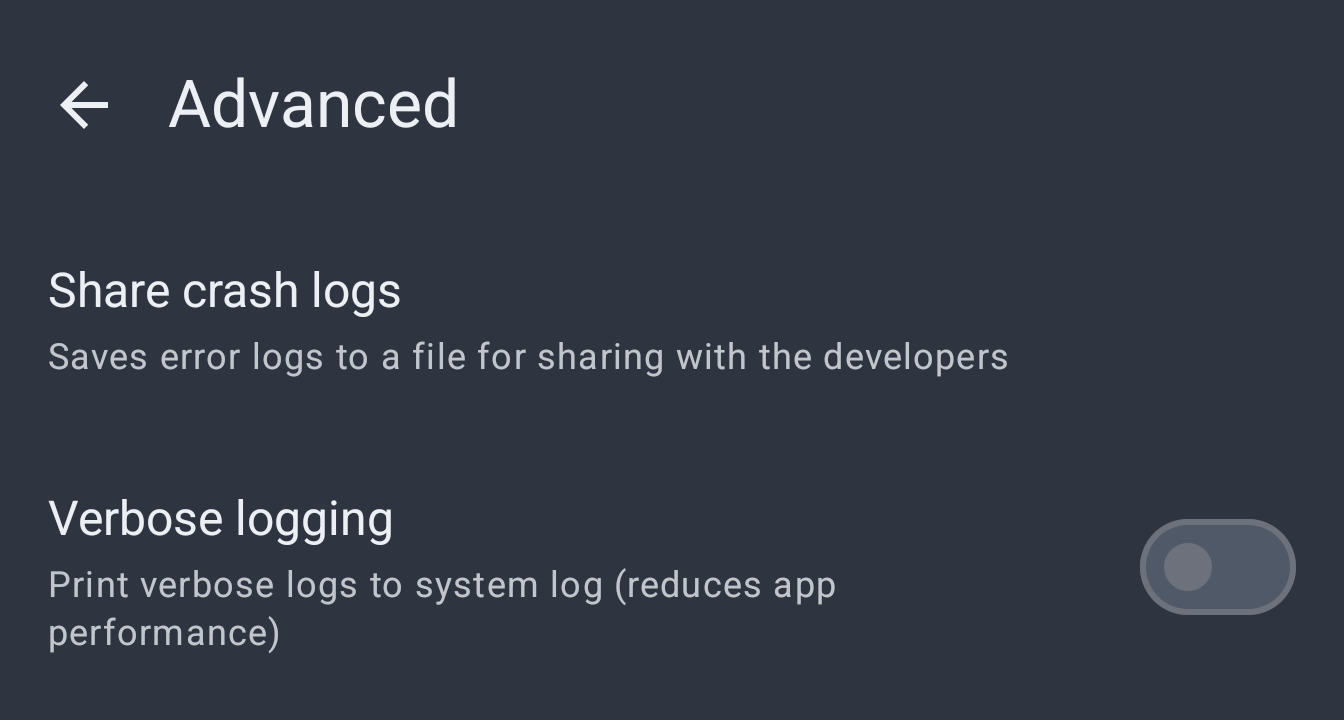
For crash investigations, navigate to and tap Share crash logs.
Obtaining more logs
To diagnose abnormal app behavior, record device logs using a Logcat Reader.
App or extension installation issues
Encountering problems while trying to install app or extension .apk files? Follow these steps:
- Install the latest version of Split APK Installer from their GitHub Releases page.
- Open Split APK Installer, then select and install the
.apkfile.
Common errors:
Split APK Installer helps show better error messages or may even successfully install your .apk without issue. Common errors include:
INSTALL_FAILED_UPDATE_INCOMPATIBLE: Package apk.file_name signatures do not match the previously installed version; ignoring!
Seeing this error while installing means the .apk already exists on the device, indicating a mismatch in signatures.
- Backup any data, uninstall the existing app or extension from your device, then install the
.apkfile again.
DISPLAY_NAME column is null
This error can mean the .apk file is corrupted or did not download completely.
- Try re-downloading the
.apk.
INSTALL_FAILED_NO_MATCHING_ABIS
Seeing this error suggests the .apk is incompatible with your device's CPU architecture.
- Download the universal
.apkversion (i.e. the largest.apkfile size option on GitHub), otherwise download the compatible version for your device.