
Manga reader settings
The settings in , with their defaults. Light novels have their own screen, covered in novel reader settings. A setting that appears on both, such as Keep screen on, is stored separately for each.
Most of these can also be changed while reading: open a chapter, tap the middle of the screen, and press the gear icon.
General
Default reading mode Paged (right to left)
This setting sets the reader's default direction when you open a series.
Right-to-left, the default way of reading manga.
- Swipe right for next page.
- Swipe left for previous page.
TIP
You can set a different mode for one series: open a chapter, tap the middle of the screen, press the gear icon, and pick from Reading mode.
Double tap animation speed Normal
Double tap animation speed changes the speed in which the zoom happens when double tapping.
Show reading mode On
Briefly show the current reading mode when the reader is opened.
Show tap zones overlay Off
Briefly shows an overlay for the current tap zones when reader is opened.
Animate page transitions On
This setting applies a smooth transition when tapping to change page.
Load ahead only on Wi-Fi On
On Wi-Fi, a chapter from a source loads all its pages in the background, and the next chapter once it has. Off Wi-Fi with this on, only the pages near the one you are reading load, and the next chapter loads as you near the end. Novels are not affected: their next chapter is a single small download.
Pages to load ahead off Wi-Fi 4 pages
Shown while Load ahead only on Wi-Fi is on. How many pages past the one you are reading load off Wi-Fi. Higher is smoother and costs more data.
Display
Default rotation Free
This allows you to control how the screen is going to be oriented.
TBA
Background color Black
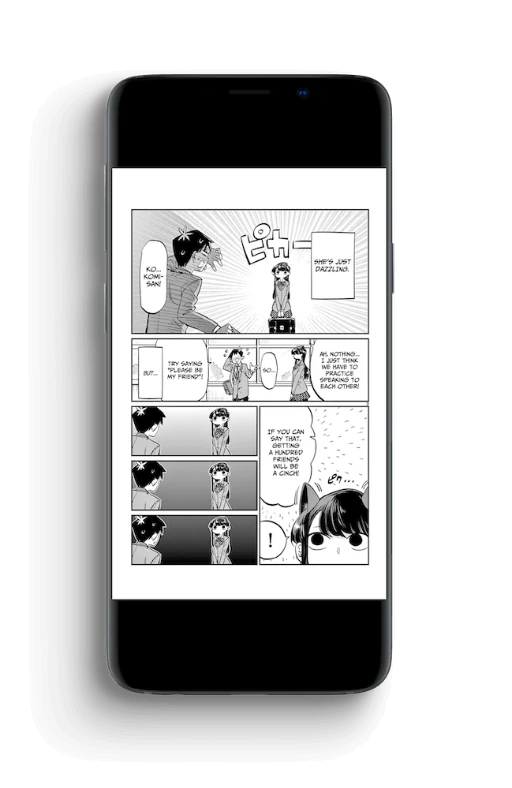
Fullscreen On
Allows app elements to extend to the edges of the screen, including the status and navigation bars.
Show content in cutout area On
Displays reader content in the camera cutout area, maximizing the use of the entire screen. Only available on a device with a cutout, while Fullscreen is on.
Keep screen on Off
Keeps the screen from going to sleep.
Show page number On
Shows the current page number at the bottom of the screen.
Chapter title Name
What the reader's bar calls the open chapter: its Name, its Number, or Number and name. The novel reader has its own copy of this setting.
E-Ink
Flash on page change Off
Flashes the screen on page change to reduce ghosting on E-ink displays. The three settings below only appear once this is on.
Flash duration 100 ms
How long each flash lasts.
Flash every 1 page
How many pages pass between flashes. Higher is less distracting and lets more ghosting build up.
Flash with Black
Whether the flash is Black, White, or White and Black.
Reading
Skip chapters marked read Off
Skips over already read chapters while reading.
Skip filtered chapters On
Skips over filtered chapters while reading.
Skip duplicate chapters Off
Skips over chapters detected as duplicates. With Downloaded only on, the copy on your device is the one kept.
Mark chapter read when skipping ahead Off
When you jump to the next chapter, marks the one you skipped as read.
Start auto-scroll when opening a chapter Off
Starts auto-scroll each time you open the reader. Auto-scroll in the reader's Controls tab starts or stops it until you leave the reader, without changing this setting, and so does its bottom bar button once you add it under Bottom bar buttons. It pauses while the menu is open and while your finger is on the screen.
Page turn interval 5 s
Paged modes only. How long a page stays on screen before auto-scroll turns it, counted from when the page has loaded, so it never turns past a page that is still loading.
Scroll speed 1.0x
Long strip modes only. How fast auto-scroll moves the strip. It waits at a page that is still loading and scrolls on past one that failed, so its Retry button comes into view.
Auto webtoon mode On
Opens manhwa, manhua and webtoons in Long strip without you setting it per series.
It goes by what the source says, not by the pictures: a "Manhwa", "Manhua", "Webtoon" or "Long strip" genre tag, or a source name that gives it away. A "Manga" genre tag rules it out, and a "Comic" tag or comic source rules out a Manhwa or Manhua guess. Genres you changed with Edit info count instead of the source's, and in a merged series one source saying it is enough. A mode you picked for a series always wins.
Bottom bar buttons
Which buttons sit in the reader's bottom bar, and in what order. Rotation, reading mode, view chapters and crop borders are on by default. The settings gear can be moved like the others but not switched off.
Resume reading position Off
Reopens a chapter where you left it, even one already marked read.
Always show chapter transition On
Shows chapter transitions regardless of whether the next chapter is loaded or not.
Paged
Tap zones Default
Right and Left in Paged (left to right) and Paged (right to left). L shaped in Paged (vertical) and the long strip modes. 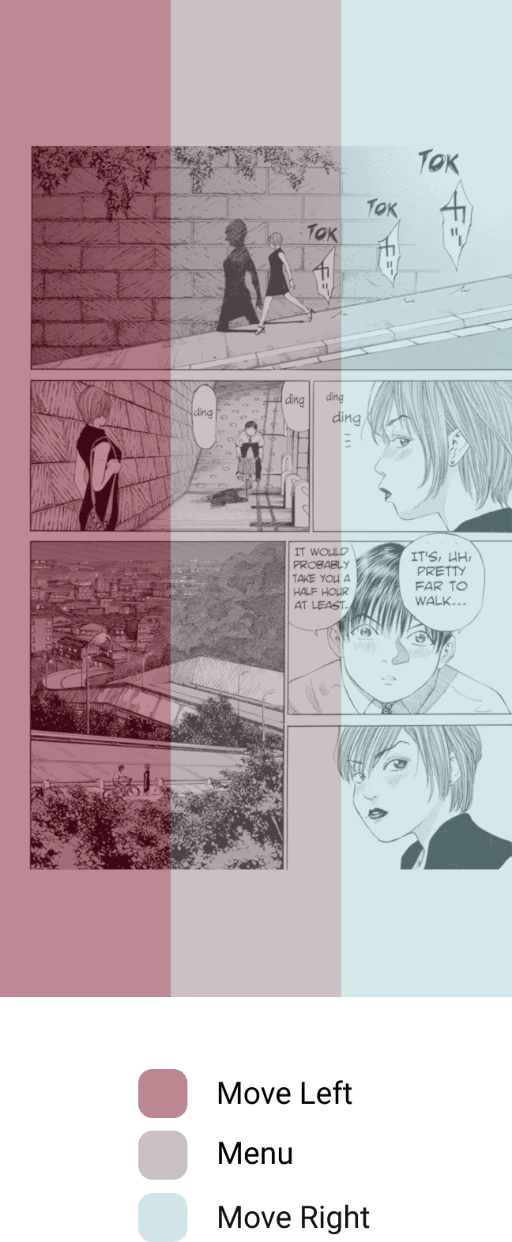
Invert tap zones None
Keeps the default tap zones.
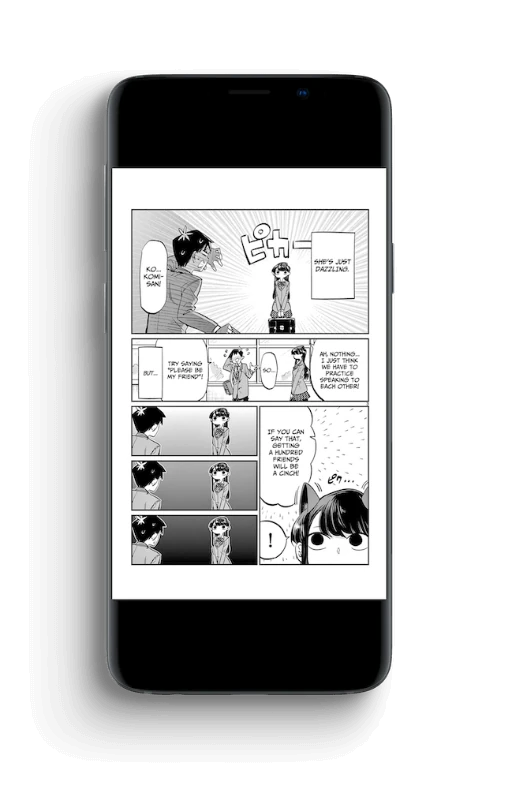
Crop borders Off
Split wide pages Off
TBA
Invert split page placement Off
Swaps which half of a split double-page spread comes first. Only useful once Split wide pages is on.
Rotate wide pages to fit Off
TBA
Flip orientation of rotated wide pages Off
Rotates those pages the other way round. Only useful once Rotate wide pages to fit is on.
Scale type Fit screen
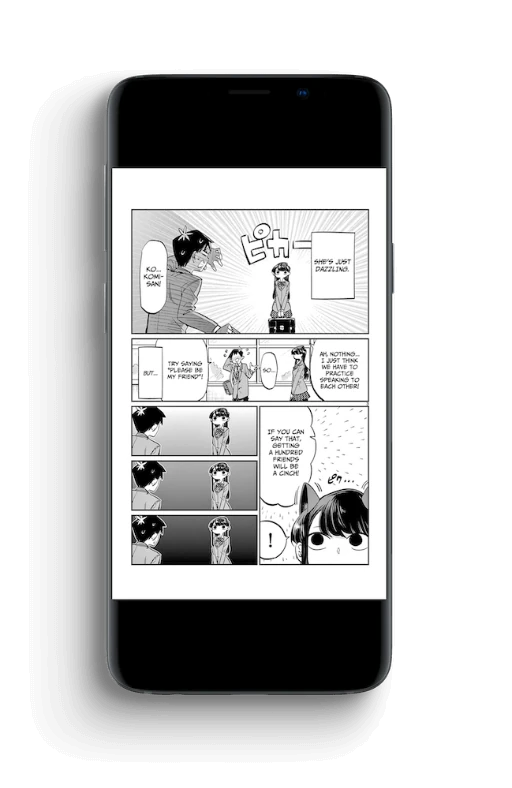
Zoom start position Automatic
Starts at the left of the page in Paged (left to right), at the right in Paged (right to left), and in the center in Paged (vertical). With the High quality renderer on, Paged (vertical) starts at the left instead.
Automatically zoom into wide images On
TBA
Pan wide images On
TBA
Long strip
Tap zones, Invert tap zones, Crop borders, Split wide pages, Invert split page placement, Rotate wide pages to fit and Flip orientation of rotated wide pages appear here as well as under Paged, and each mode keeps its own answer. They work as described above.
Side padding 0%
Adds the specified padding to the left and right of the screen. Shown while Use high quality renderer in is off.
Min width 100%
How wide the strip is drawn, as a share of the screen. Shown in place of Side padding while Use high quality renderer is on.
Sensitivity for hiding menu on scroll Low
How quickly you have to scroll a long strip before the menu hides: Highest hides it on the slightest scroll, Lowest only on a fast one. A change applies the next time the reader opens. It has no effect while Use high quality renderer in is on.
Double tap to zoom On
Zooms into the image on double tap.
Disable zoom out Off
Stops a pinch from zooming a long strip out smaller than its normal width.
High quality renderer
Use high quality renderer in Off draws every reading mode with a newer renderer. While it is on, the reader's settings sheet adds a few options of its own, which are not on the settings screen.
Dual page view Never
On the Reading tab, for Paged (left to right) and Paged (right to left) only. Always shows two pages side by side, and When wide does so only while the screen is wider than it is tall.
Gap 10%
On the Reading tab, for Long strip with gaps only. The space between pages, as a share of the screen.
Transition animation Basic
On the Appearance tab, paged modes only. How the page turns: Basic, Page flip (also to the left or right), Stack in four directions, Sphere, Cube (Inside), Cube (Outside), Fade, Fade to white or None. While two pages are shown, Transition animation (dual) takes over, with the same choices apart from the left and right page flips.
Display cutout mode Avoid
On the Appearance tab, paged modes only. How the page sits around the camera cutout: Ignore draws under it, while Avoid and Shift keep the page clear of it. While two pages are shown, Display cutout mode (dual) Ignore takes over.
Navigation
Volume keys Off
Enables page navigation with the volume keys.
Invert volume keys Off
Inverts what the volume keys do.
Volume key scroll amount 75%
How much of the screen one press moves. It applies to the long strip modes only, since a paged reader turns a whole page either way. Shown while Volume keys is on and Use high quality renderer in is off.
Show chapter navigator On
Shows the slider for moving through the chapter. With it off, neither the slider nor the vertical navigator is drawn, and the previous and next chapter buttons move to the two ends of the button bar. The settings below it only appear while it is on.
Use vertical chapter navigator in None
Shows a vertical progress slider instead of the horizontal one, in the reading modes you pick. Nothing is picked by default, so the two settings below it stay hidden until you choose a mode here.
Place vertical navigator on the left side Off
Moves that slider to the left edge, for left-handed reading.
Vertical navigator height 65
How tall the slider is, as a percentage of the screen.
Actions
Show actions on long tap On
Shows the following options on long tap while the reader is open.
- Set as cover
- Copy to clipboard
- Share
- Save
Save pages into separate folders Off
Saves each page you save from the reader into its own folder named after the series, inside Pictures/Reikai, instead of putting every page directly in Pictures/Reikai.