
Backups
Backups can be created to save your library data and app settings. You can transfer and restore backup files between devices, and between Reikai and other apps in the same lineage.
How to create a backup
- Go to .
- Select Create backup and choose a location to save it.
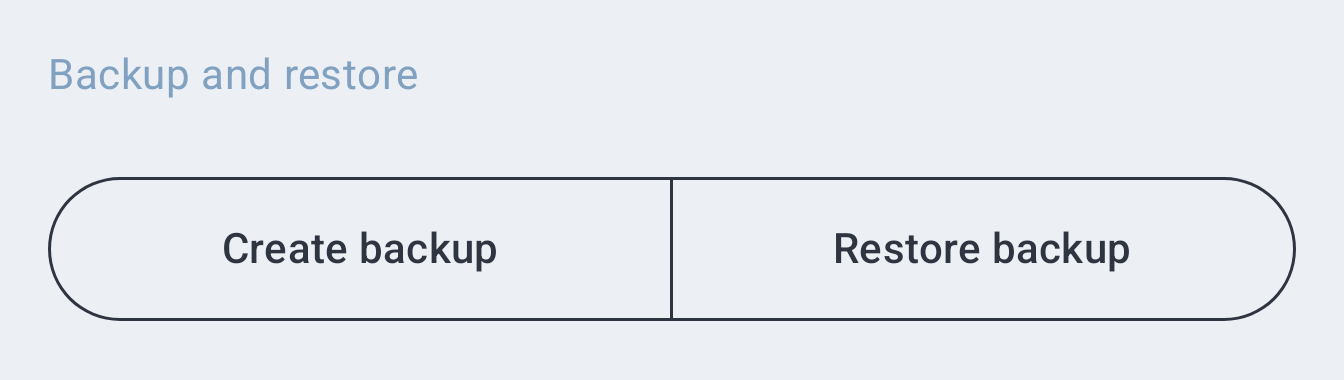
General backup details
What is included in a backup?
Backups (with pre-selected items) will contain the following:
One backup covers both libraries: everything below applies to manga and light novels alike.
Library data
- Library entries
- Manga and Novels - Back up one library without the other, which also makes the file smaller
- Chapters - Chapter data for saved entries
- Tracking - Trackers added to individual saved entries
- History - Read history for saved entries
- Categories
- Custom entry info - The title, author, cover and tags you edited yourself, kept apart from the source's own values
- All read entries - Keeps data for entries you read but did not save
The sources behind each merged series are saved as source-and-address references, so they rebuild correctly even onto a fresh install. They ride along with Library entries and have no checkbox of their own.
Settings data
- App settings
- Extension stores - Your extension repos, plus the list of installed extension apps, manga and novel
- Source settings
- Feed and saved searches - The searches you saved on a source, and the Browse feed built on them
- Include sensitive settings - Saved sign-ins: tracker logins, the FlareSolverr sign-in, and source and plugin site sign-ins. A restore never applies the FlareSolverr settings. Not included by default, and can only be ticked while App settings or Source settings is ticked
What is not included in a backup?
- Extension files. Only the list of installed extension apps and the addresses of your plugins are saved
- Downloaded chapter files including local source chapters
- Custom cover images you picked from your device. A cover URL you typed in Edit info is kept, under Custom entry info
- Cached cover images, which are re-downloaded on demand
- Android permissions granted to the app, which you re-grant on the new install
TIP
To convert your backups to JSON or to view and edit the information outside of the app, you can try Mihon Backup Viewer, a third-party tool built for Mihon's format. It may not show or keep data only Reikai stores, such as your light novels, so keep the original file before restoring one it edited.
Restoring a backup
Restore a compatible backup file in .
TIP
To ensure a smooth restoration process, remember to:
- Log into the Tracking services you previously used.
- Install the extensions the Restore screen lists. A restore installs no extension app or plugin itself, since a backup file could come from anyone; your extension and novel repos come back, so each is a tap away in Browse.
The Restore screen lists the extensions to install, any missing sources and any trackers you are not logged into.
Entries from an extension you have not installed yet reappear in your library but cannot fetch chapters until you install it. Your plugin repos ride along in App settings and your extension app repos, manga and novel, in Extension stores, so leave both included to get them back.
Transferring downloads to a new installation
During the setup or after restoring a backup to Reikai:
- In , double-check your specified Storage location that Reikai has access to.
- Transfer or move your previously downloaded chapters into your set Storage location: manga into its "downloads" folder, light novels into its "novel_downloads" folder.
- In , tap on "Reindex downloads" to rescan your downloaded chapters.
Suggestions for backups
Enabling automatic backups
It is highly recommended to enable automatic backups to ensure you can recover in case of any issues.
How to enable automatic backups
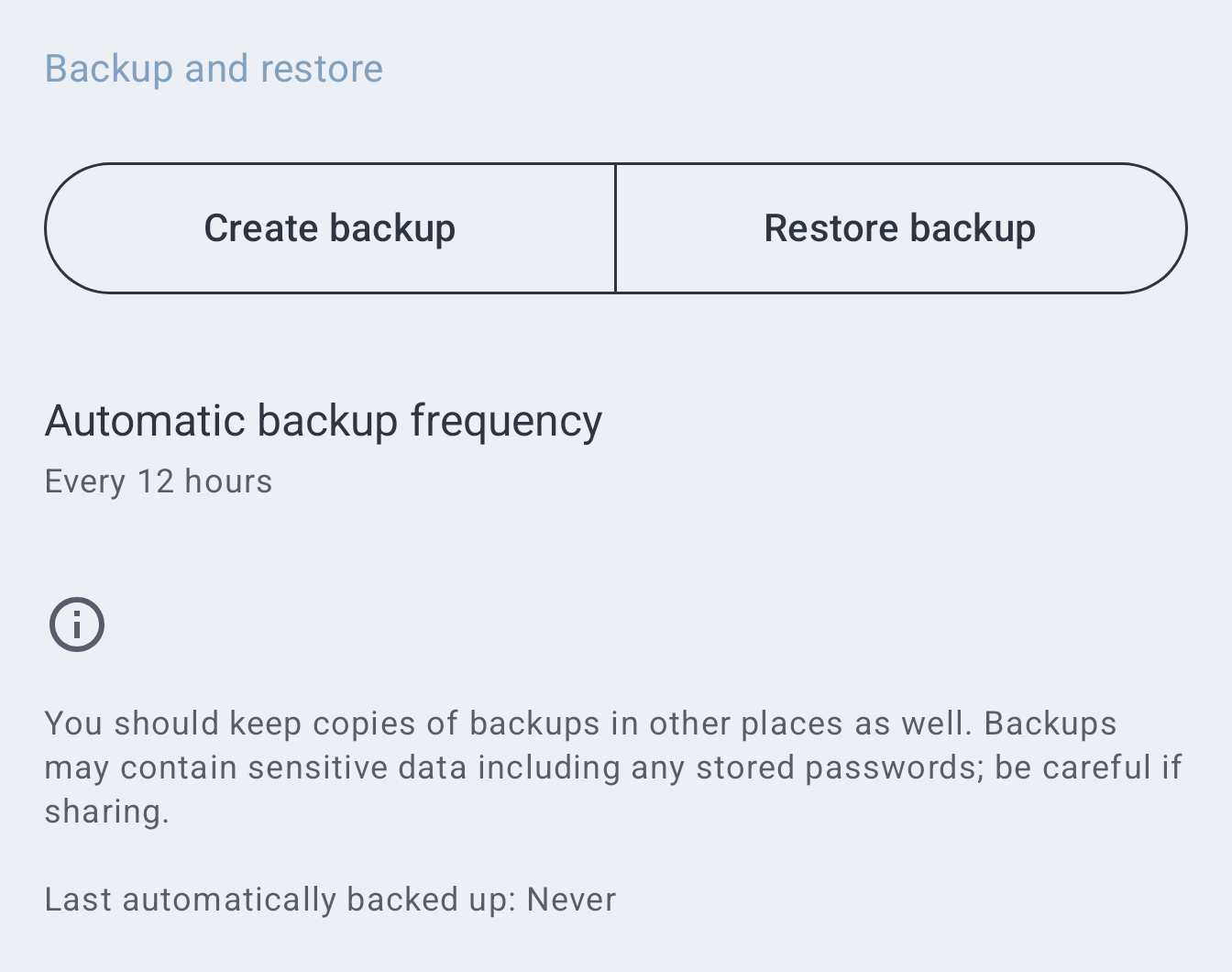
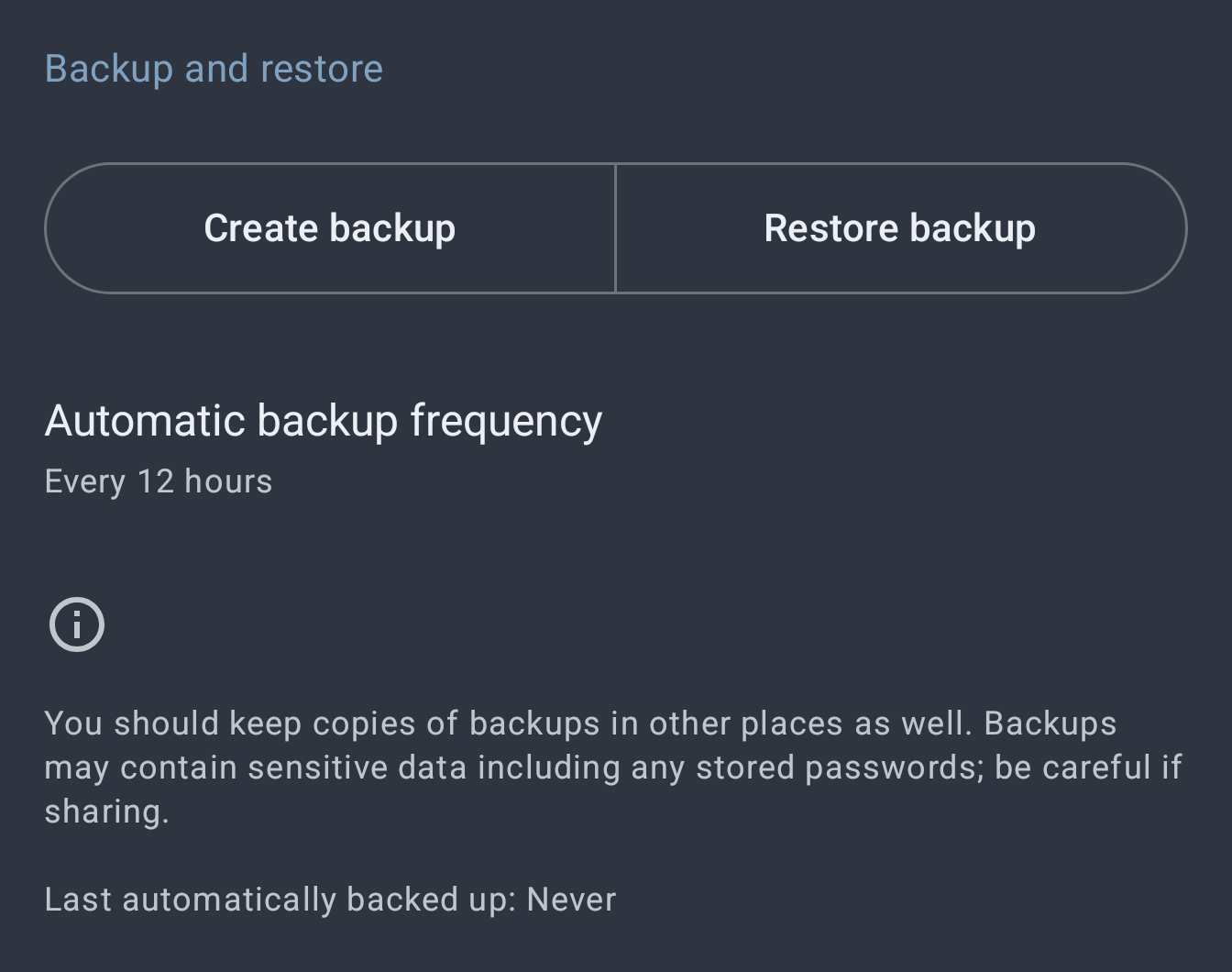
- Go to .
- Check Automatic backup frequency. It is on by default, every 12 hours, and you can change how often it runs or turn it off.
- Automatic backup files can be found in your specified Storage location's "autobackup" folder.
- In case of an error or issue, this allows you to retain a recent copy of your library data.
Syncing backups with external cloud services
Cross device sync in Reikai is not currently available, but users can use FolderSync in order to sync backup files to Drive automatically with the following steps:
- Install the FolderSync app from the link above.
- Enable Automatic Backups and set it to your desired frequency.
- In the FolderSync app, navigate and select the "autobackup" folder to begin syncing to your preferred cloud service.
- On your second device, download the latest backup from your cloud service to restore into Reikai.
Users who are familiar with Autosync for Google Drive or Tasker can setup auto sync of their backups similarly.
Exporting a list of your library
A backup is for restoring into the app. For a list you can read or open in a spreadsheet, use Library List under Export in .
Pick the columns, Title, Author and Artist (all ticked to start), tap Save and choose where to save the file. It is a CSV file, reikai_library.csv unless you rename it, with one line per entry and no header row: your manga first, then your light novels. A merged series is listed once, and titles and names you changed with Edit info are written as you changed them.
Backups from other apps
Reikai uses Mihon's backup format, so a .tachibk backup from Mihon, Yōkai and several other forks restores here, and a backup made here carries your manga to them. What comes across each way, and the steps for moving to Reikai, are in Before you upgrade.